
In this demo, we will walk through the steps of using AceTrackr to analyze tennis serves. One of the core features of AceTrackr is its ability to process video footage and extract detected serves into individual clips for review.
To get started, first navigate to the 'Sessions' tab on the navigation bar.
Once in the 'Sessions' tab, create a new upload by pressing the 'Upload Video' button.
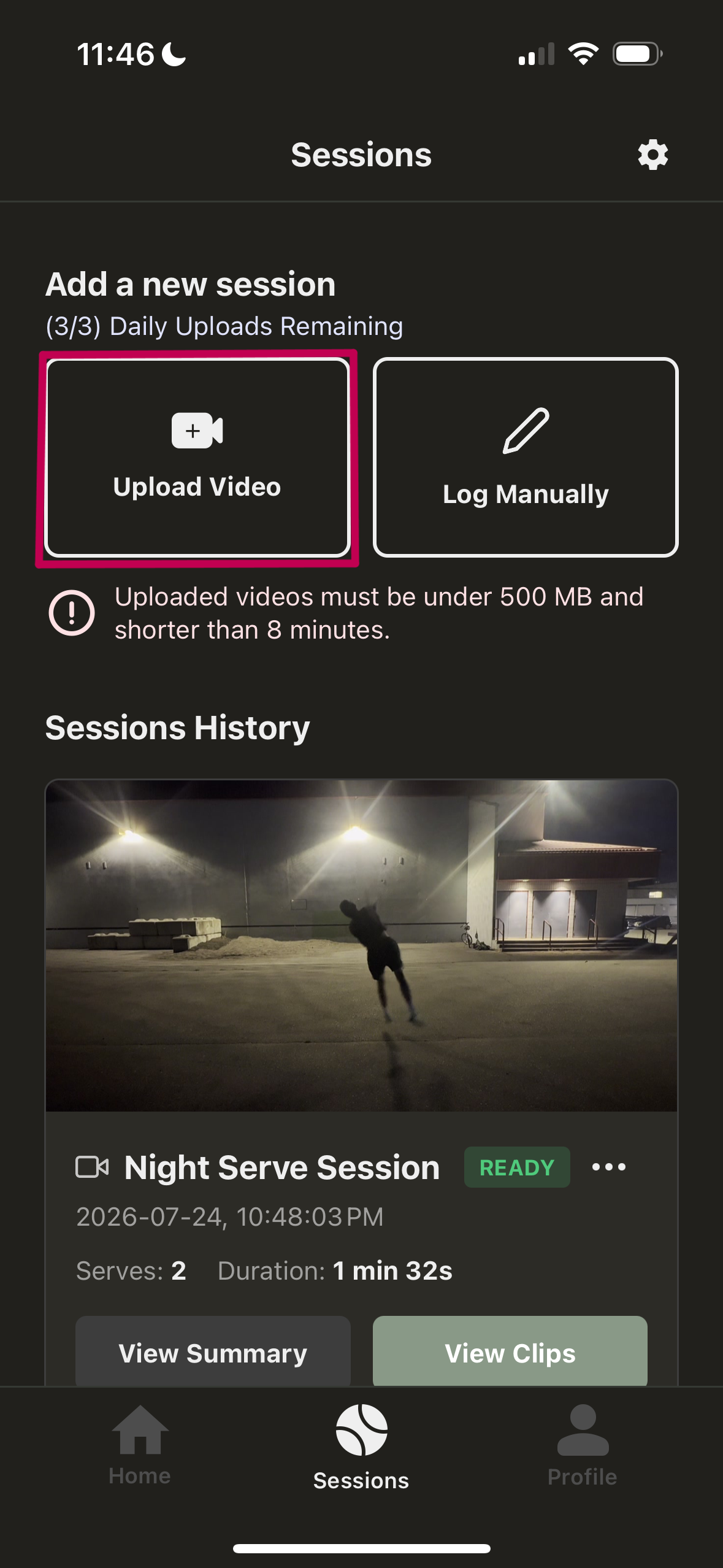
A pop up will appear where you can select the video file to upload. Once selected, the video will automatically start uploading to the server.
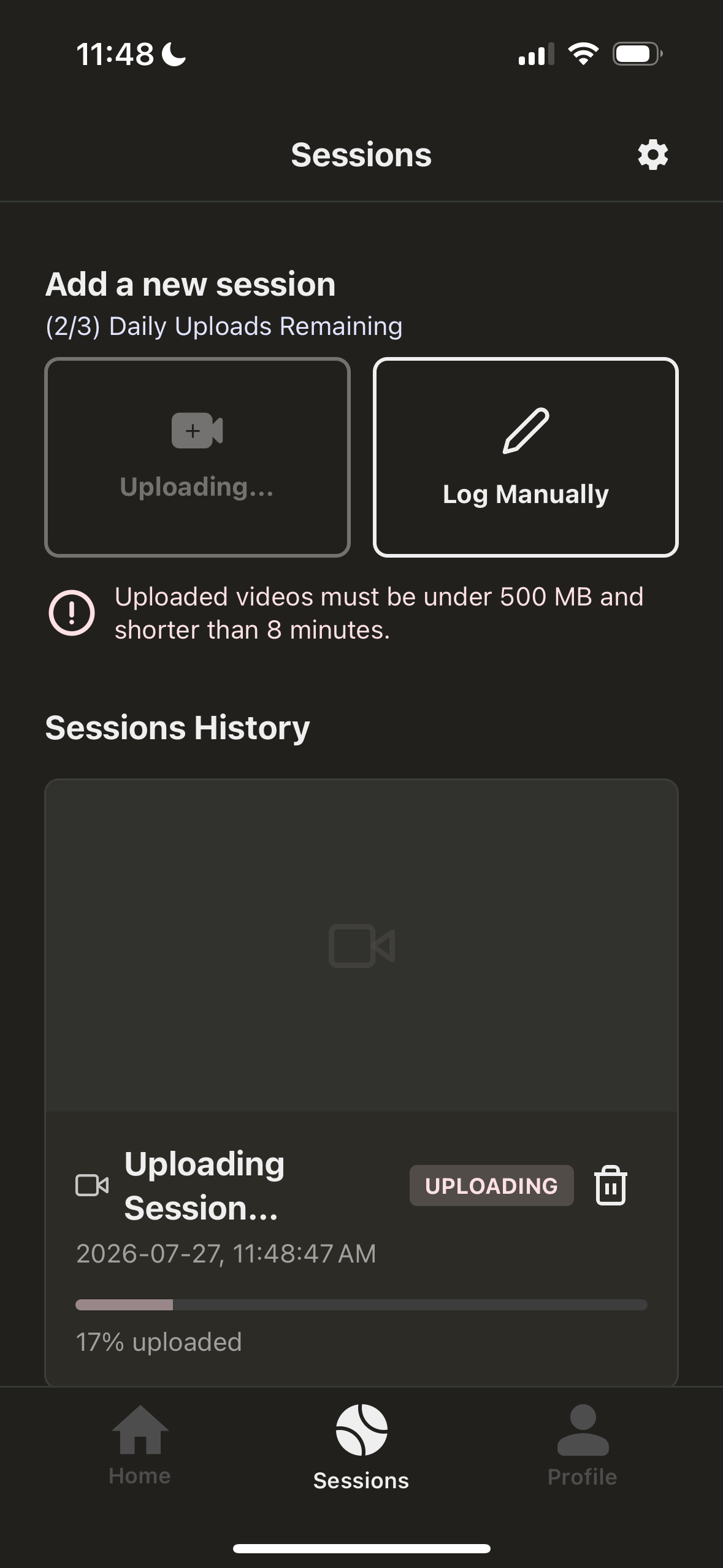
While uploading, it is recommended not to close the app, however AceTrackr supports resumable uploads, so you can resume from where you left off if your connection is interrupted. Viewing other sessions while uploading will not affect the upload process.
Once the upload is complete, the video will be processed on the servers. This may take a few minutes depending on the length of the video. From benchmarks experiments, a 8 minute video may take around 16-24 minutes to process. You can close the app during processing and return later to check the status of the processing. You will receive a notification when the processing is complete.
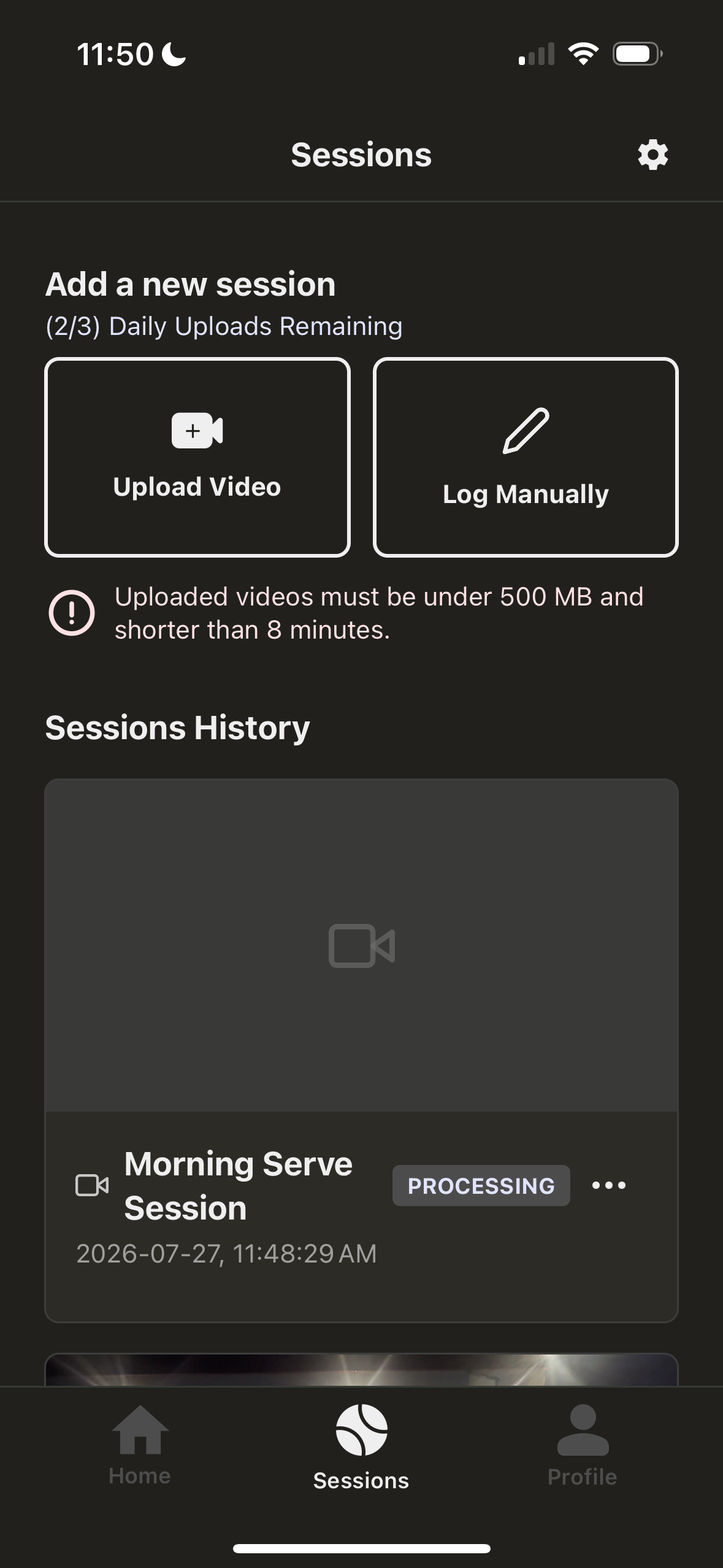
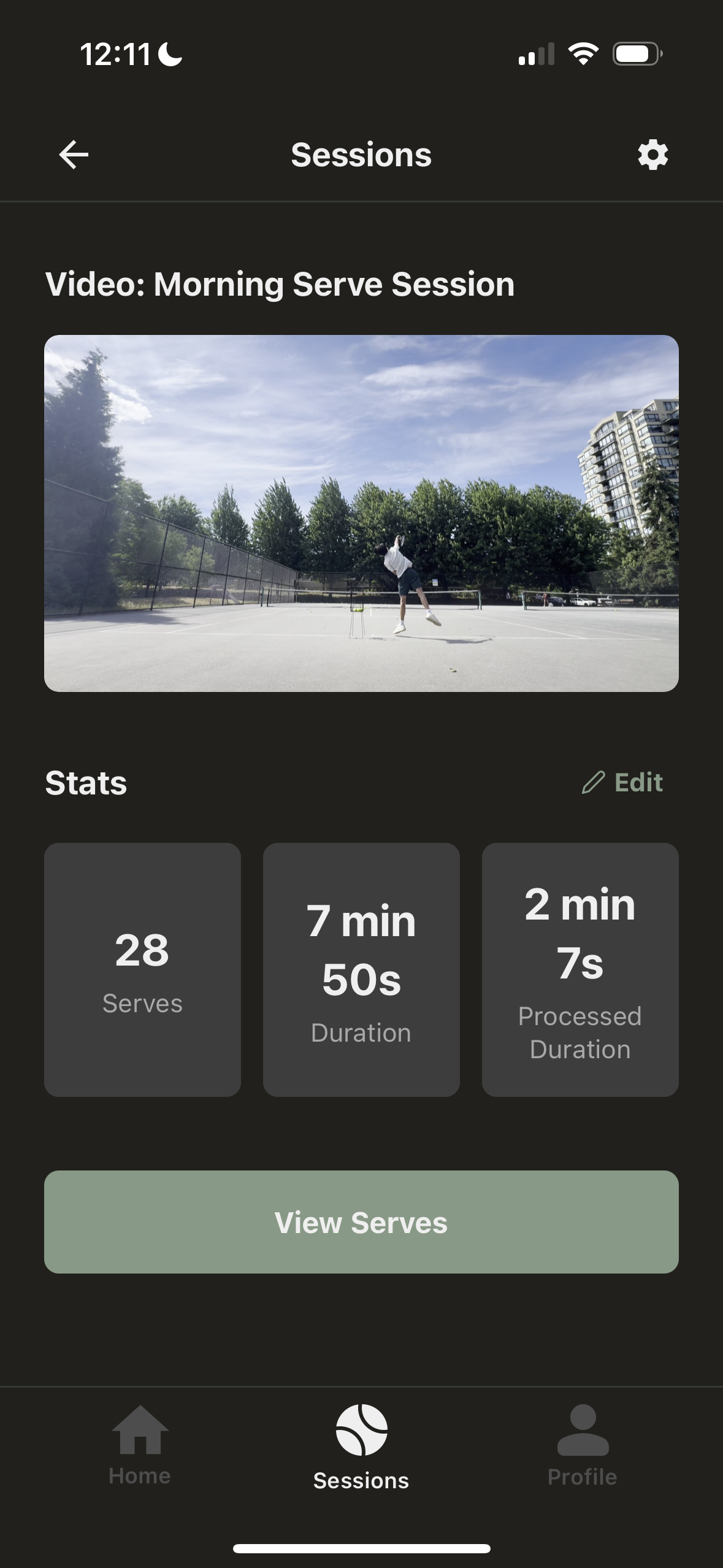
Once processing is complete, you can start viewing your clips for personal review. Additionally you can view the process summary to see how many serves were detected and how much dead time was cut out of the original video.
Here is a video demo of the AceTrackr interface in action: